

Multiply Duplicate lets you copy one or more items many times in a single step, so you don’t have to duplicate them one by one.
Duplicate a single item, a selection of items, or a group in bulk.
Right-click and choose Multiply Duplicate, or press Ctrl+M.
Enter the number of copies you want, and MaxCut adds them to your job as new line items.
Community Edition allows up to 3 copies at a time. Business Edition has no limit.
When to Use Multiply Duplicate
Use it when a job needs the same item or set of items repeated, for example:
A run of identical cabinets in a kitchen.
Matching shelves or doors across several units.
A library item you’ve added once and need several more of.
How to Multiply Duplicate Items
On the Input Items tab, select the item or items you want to duplicate.
Hold Ctrl to select several items, or Shift to select a range.
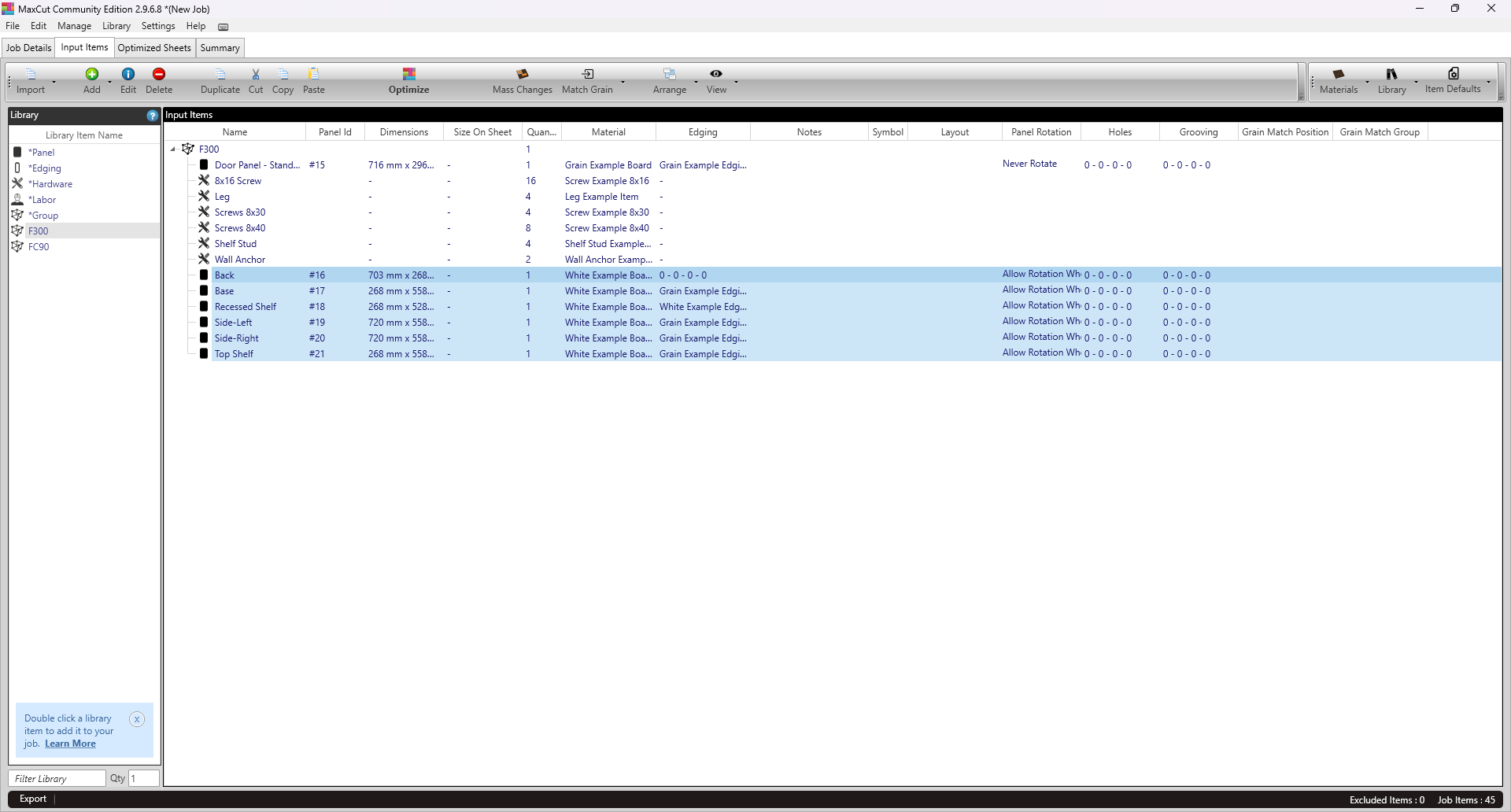
Right-click the selection and choose Multiply Duplicate. You can also press Ctrl+M.
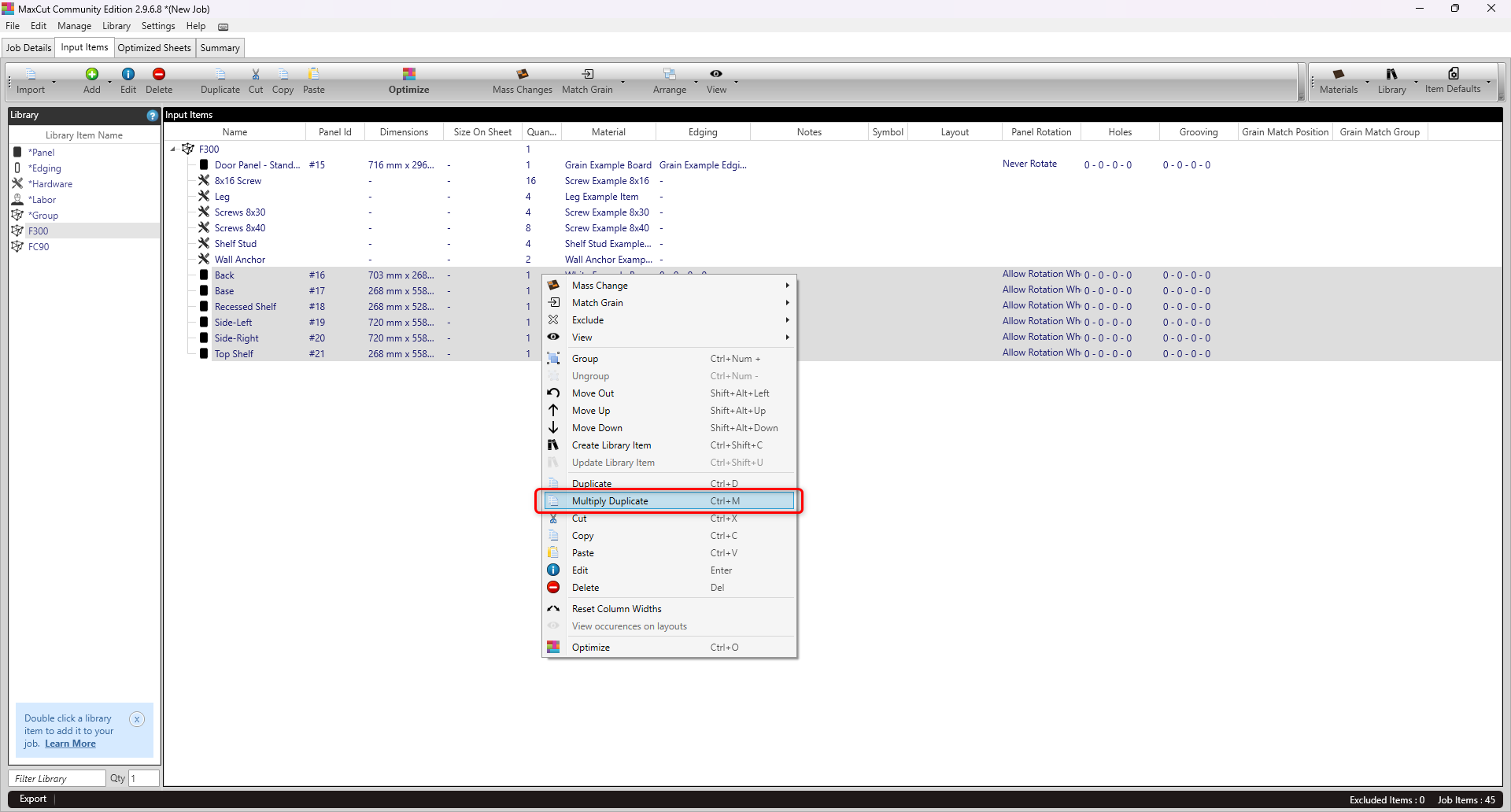
Enter the number of copies you want, then click OK.
The number is how many copies are added on top of the original. For example, entering 3 gives you the original plus 3 copies, so 4 in total.
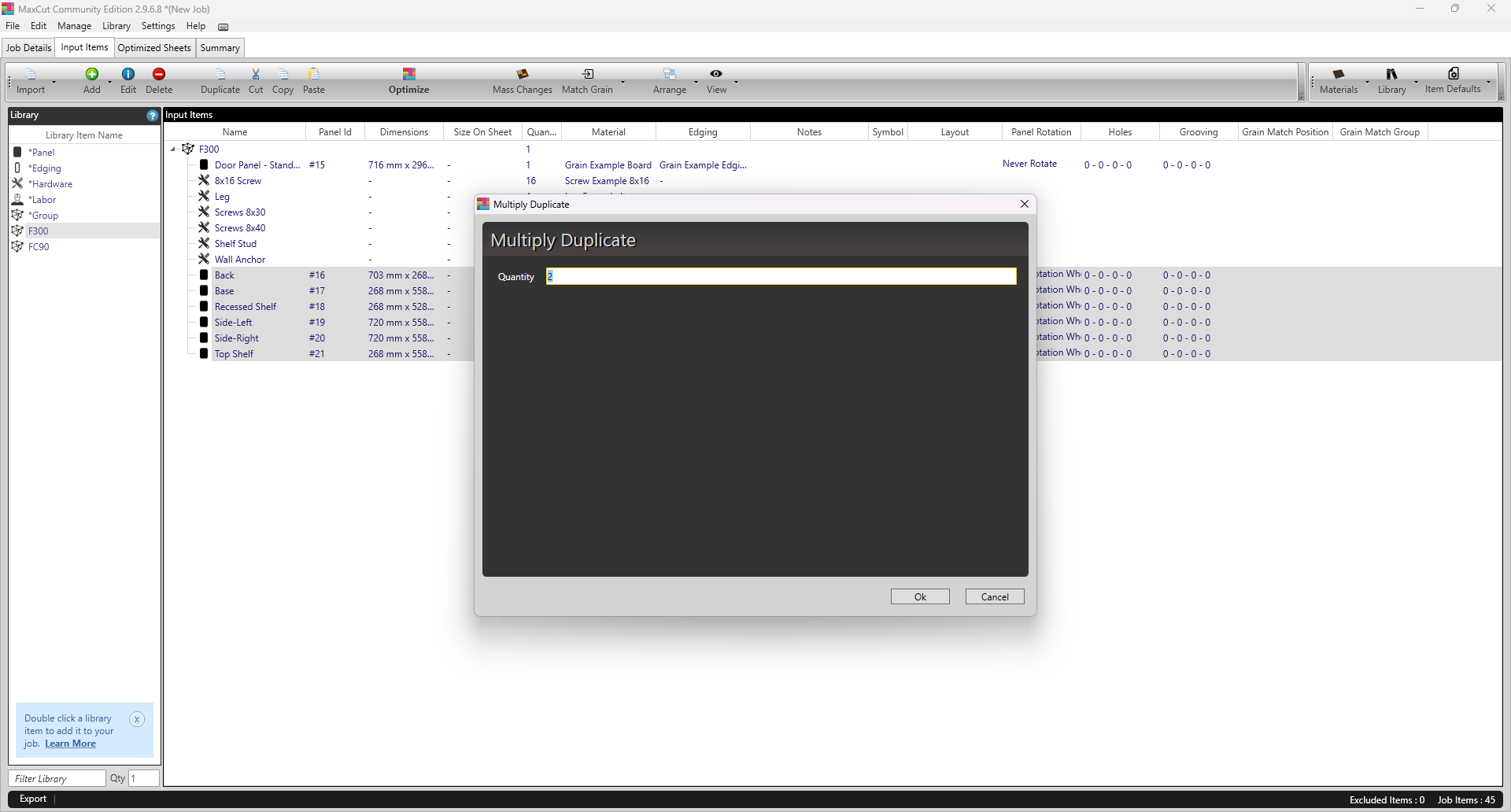
The copies are added as new lines in your Input Items list. Each copy keeps the same details as the original, including its quantity. For example, if an item has a quantity of 2, each copy also has a quantity of 2.
Community Edition and Business Edition
Community Edition: up to 3 copies at a time.
Business Edition: unlimited copies.
Tips and Best Practices
Pair with Library Items: Add a saved cabinet from the Library Items sidebar, then use Multiply Duplicate to add as many as the job needs.
Use the shortcut: Ctrl+M is the fastest route once you’re used to it.
Mind the quantity: Because each copy keeps the original’s quantity, check the quantity of the item before duplicating. Duplicating a line with a quantity of 2 three times adds 6 parts, not 3.
Check before optimizing: Review the Input Items list to confirm the count is right before you run the optimization.
Need to change many items at once? Use Mass Changes to edit the duplicates in bulk.
Multiply Duplicate cuts down on repetitive data entry when a job has many repeated parts, so you can set up larger jobs faster.