

You can add materials to MaxCut one at a time, but if you have a large list to add or update, it's faster to import them in bulk using a CSV file. The steps below use Sheet Materials as the example, but the same process applies to other Materials and Resources in MaxCut.
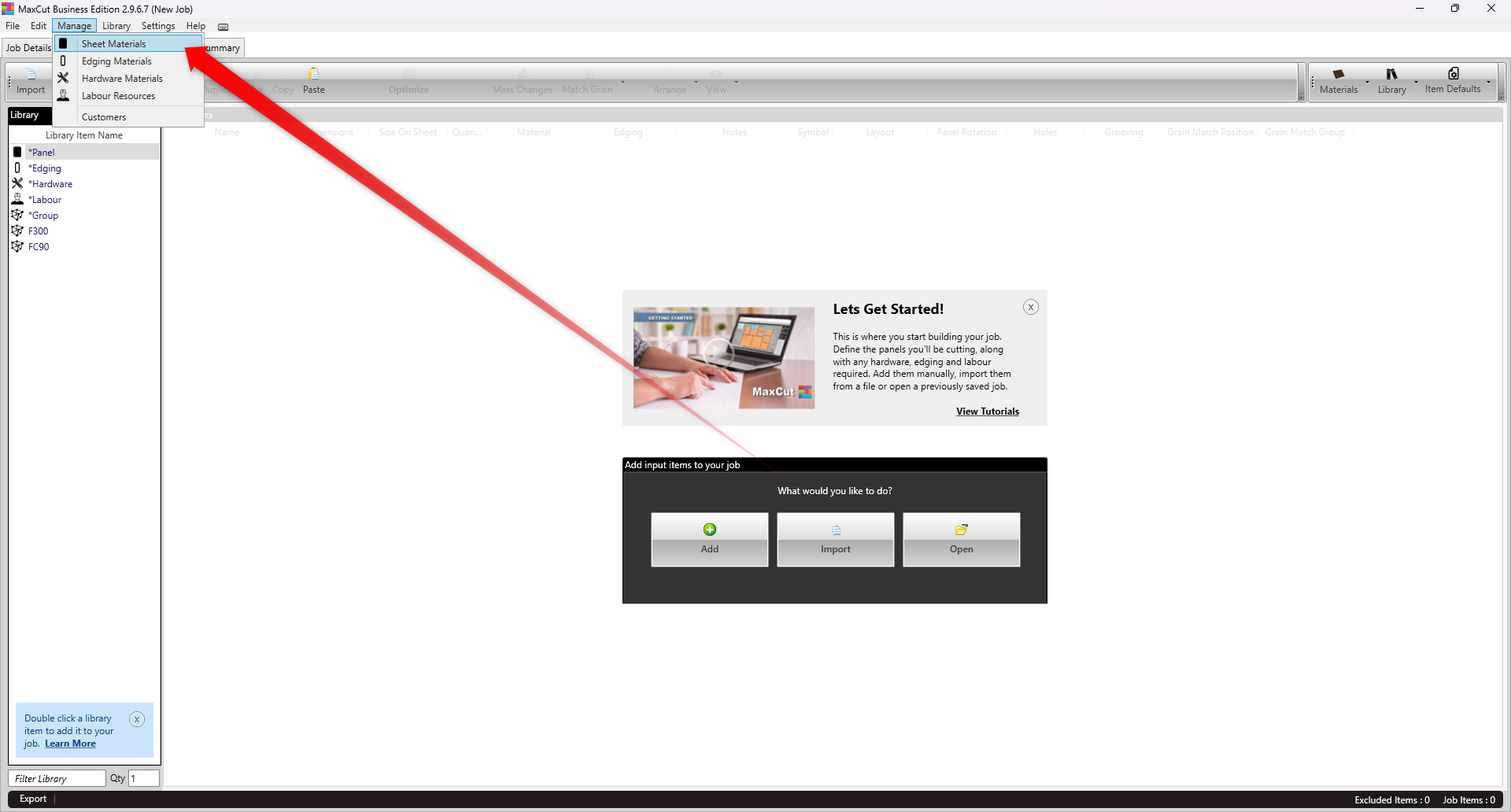
Go to Manage > Sheet Materials (or the relevant Material or resource type you want to work with).
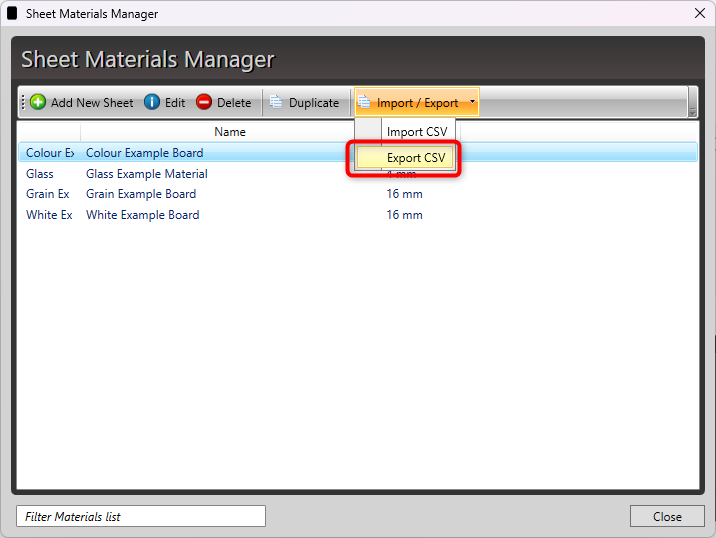
Click Import / Export and export your existing materials. This gives you a template with the correct column headers to work from. Save the file to your computer.
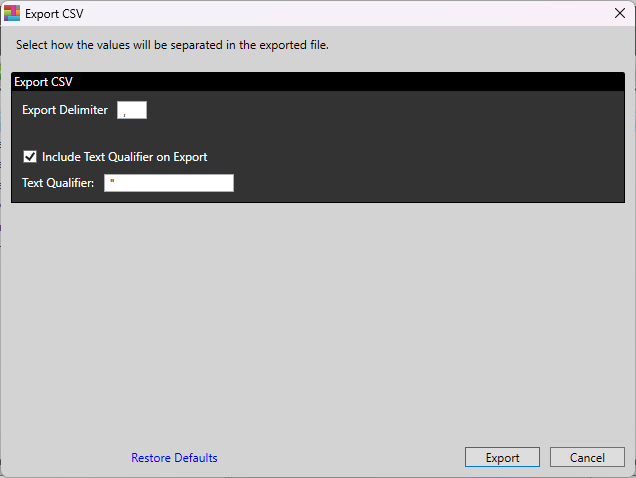
A dialog will appear asking you to select the Export Delimiter and whether to include a Text Qualifier. In most cases the default settings are fine, click Export and save the file to your computer.
Open the saved CSV file and add your new materials, or edit existing ones, using the same format as the exported data. Save the file once you're done.
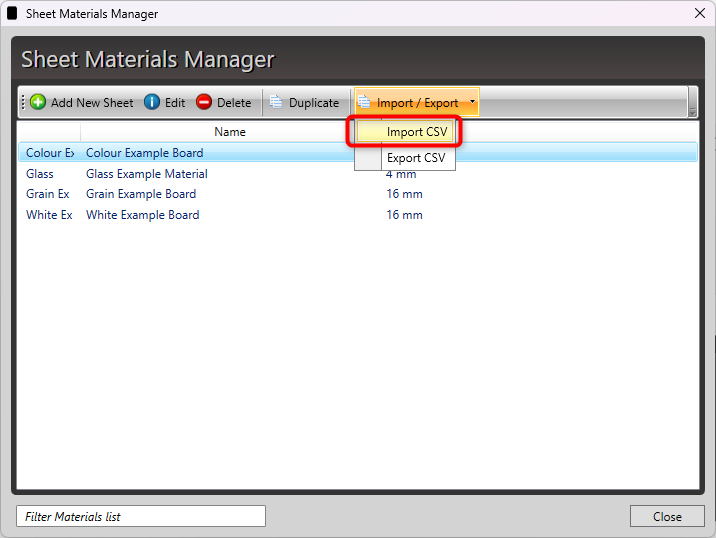
Click Import / Export again, select Import CSV, and choose the file you just saved. A similar dialog may appear asking you to confirm the delimiter and text qualifier used in your file, confirm these match your file and proceed.
A message will appear confirming how many materials were added and how many were updated.
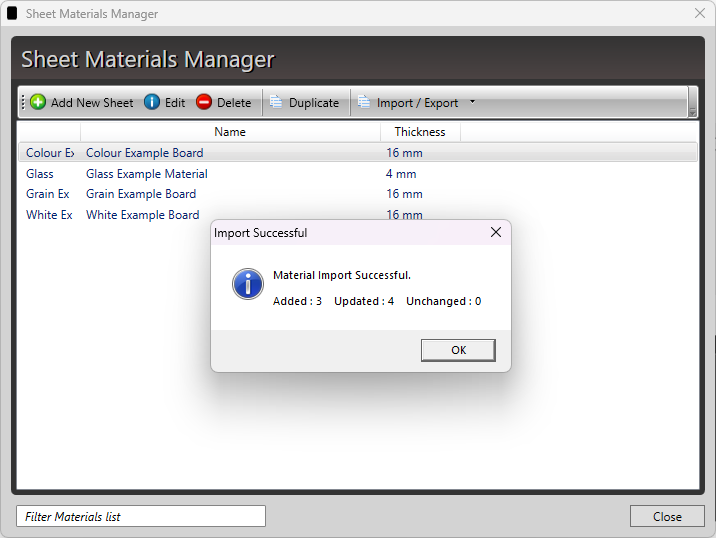
Click OK. Your added or updated materials will now appear in the Sheet Materials Manager.
Note: If you run into an error during import, this is usually caused by regional settings or invalid characters in the CSV. See our guide on Error Importing Sheet Materials from CSV for how to resolve it.