Overview
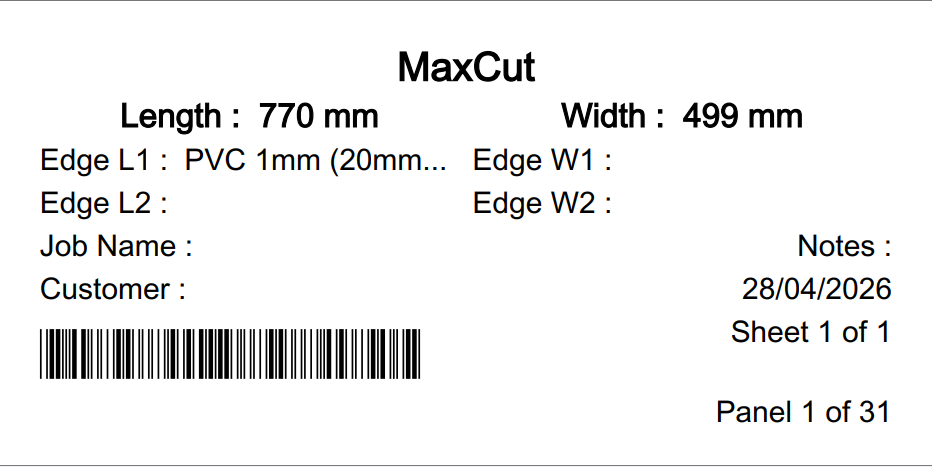
Depending on the label format you use, MaxCut will print either a barcode or a QR code on your label. The type of code and the data it contains depends on the label selected.
Barcode Support
The following label formats include a barcode:
100 x 50 mm : Simplified
60 x 40 mm : Layout 1
60 x 40 mm : Layout 2
60 x 40 mm with Visual Edging
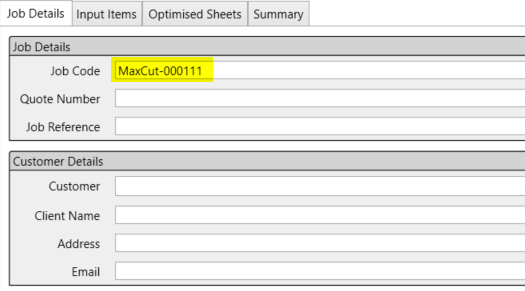
The barcode is generated from the Job Code field in the Job Details tab. To ensure your barcode contains the right data, make sure your Job Code is filled in before optimizing and printing.
QR Code Support
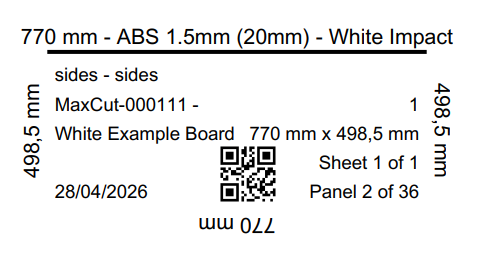
The following label formats include a QR code:
70 x 37 mm : A4 Page, 24 Labels with Expanded Sizes
70 x 37 mm : A4 Page, 24 Labels with Visual Edging
71.44 x 38.1 mm : Letter, 21 Labels (Avery 45008)
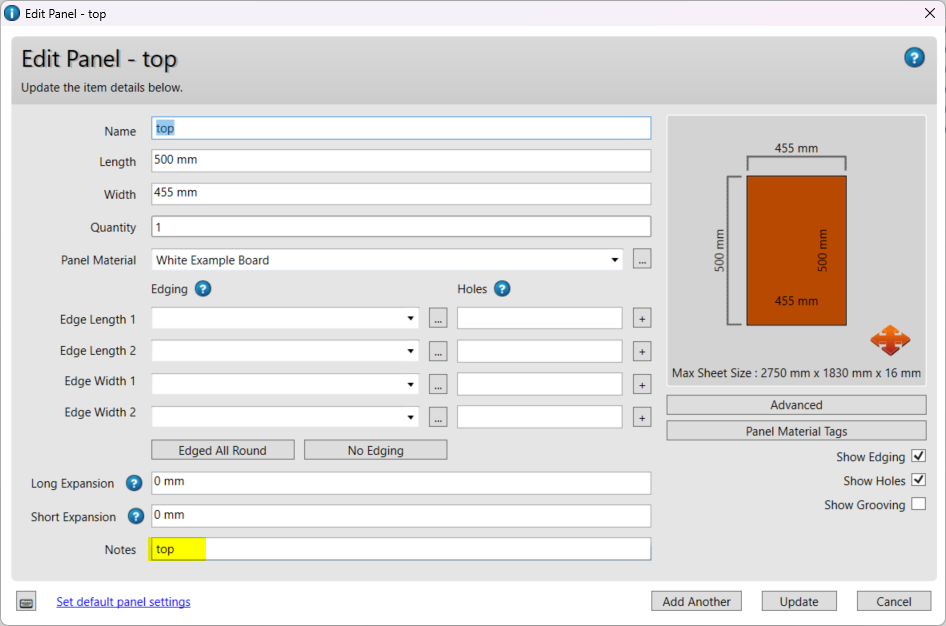
The QR code is generated from the Notes field of each individual panel. This means each panel can carry its own unique QR code data, making it useful for workflows that require panel-level identification.
To add data to your QR code:
Open the panel you want to edit.
Enter your identifier or number in the Notes field.
Save, optimize, and print using one of the supported label formats.
Choosing Between a Barcode and QR Code Label
The right choice depends on your workflow. If your process relies on the Job Code as the primary identifier, a barcode label may suit you best. If you need panel-level identification or want to encode custom data such as part numbers or machine program references, a QR code label gives you more flexibility.
Note that QR codes can typically store more data than barcodes and take up less space on the label. We recommend testing with your scanner to confirm compatibility with your setup.
Scanner Compatibility
We have not formally tested our barcodes or QR codes against specific scanner types or CNC systems. If you encounter any compatibility issues, please reach out to our support team and we will do our best to help.
We're Always Improving
Label customization is an area we are actively looking to improve. If you have feedback on how barcodes or QR codes could work better for your workflow, we would love to hear it. You can share your suggestions by contacting our support team at support@maxcutsoftware.com or through our feedback channel.