

Mass Changes lets you update details across many input items at once, instead of editing them one by one.
Change materials, names, quantities, edging, sizes and more in bulk.
Apply changes to selected items only, or to all items in the job.
Each item’s current value is shown next to a replacement field, so you choose exactly what changes.
Mass Changes is available in Business Edition.
When to Use Mass Changes
Use it when you need to make the same kind of change across a job, for example:
A client switches from one board colour to another.
You’ve duplicated or added library items and need to adjust them for this job.
Edging, quantities or names need updating across many parts.
What You Can Change
Materials
Names
Notes
Panel Edging
Panel Expansions
Panel Grooving
Panel Holes
Panel Rotation
Panel Sizes
Quantities
How to Make Mass Changes
On the Input Items tab, select the items you want to change. If you want to update every item in the job, you can skip this step.
Hold Ctrl to select several items, or Shift to select a range.
Open Mass Changes in one of two ways:
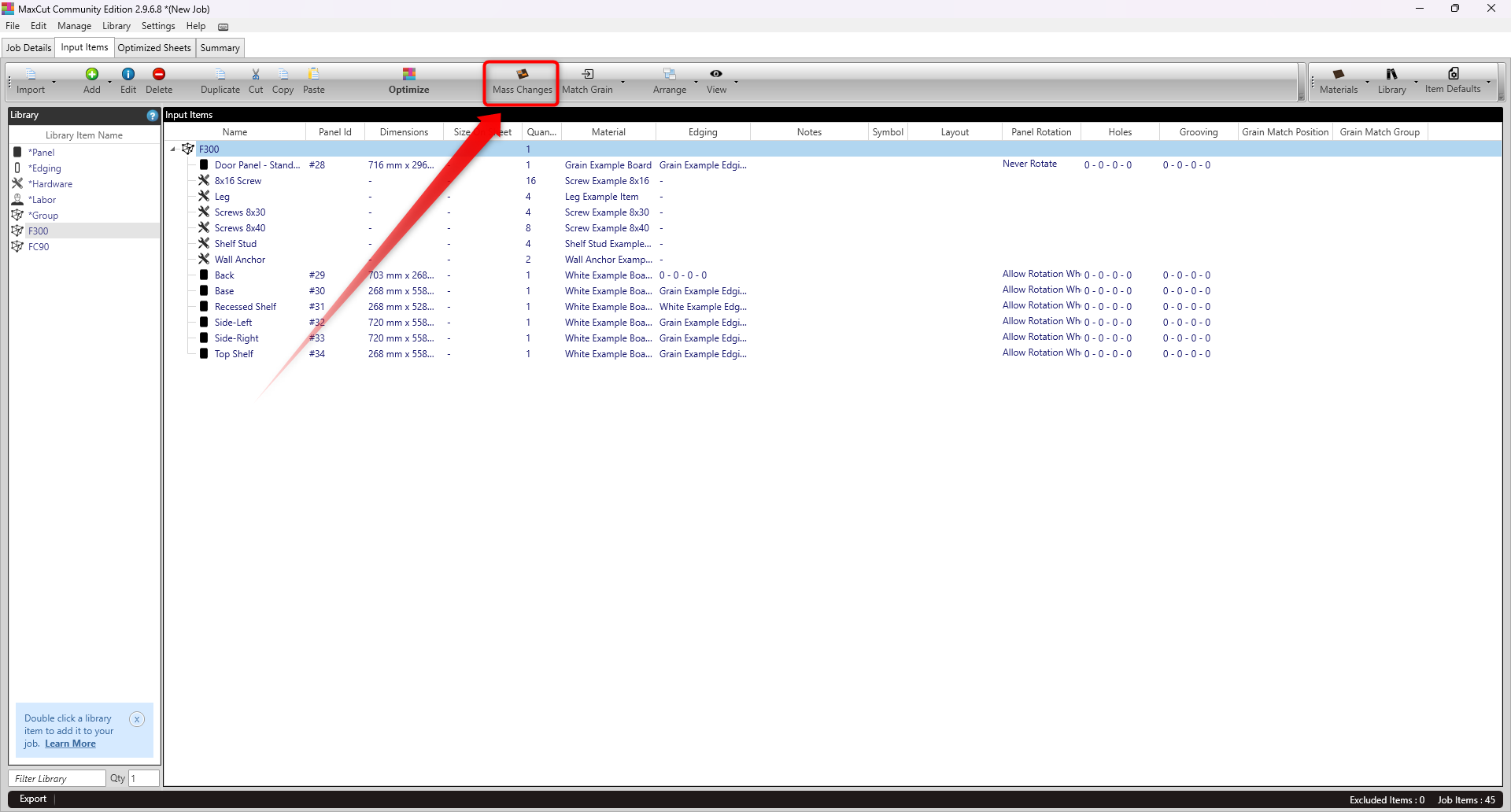
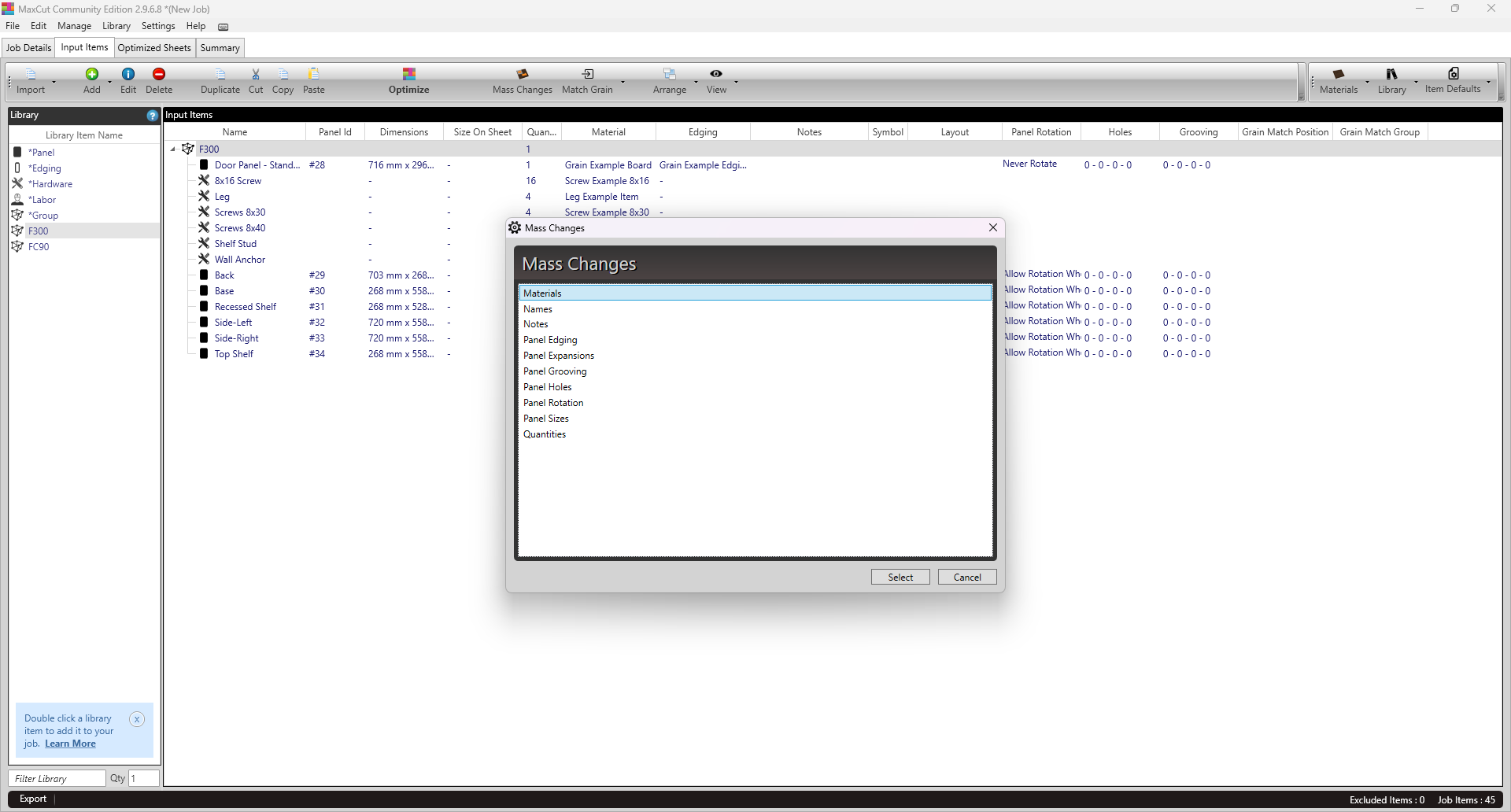
Click the Mass Changes button on the toolbar, choose what you want to change (for example Materials), then click Select.
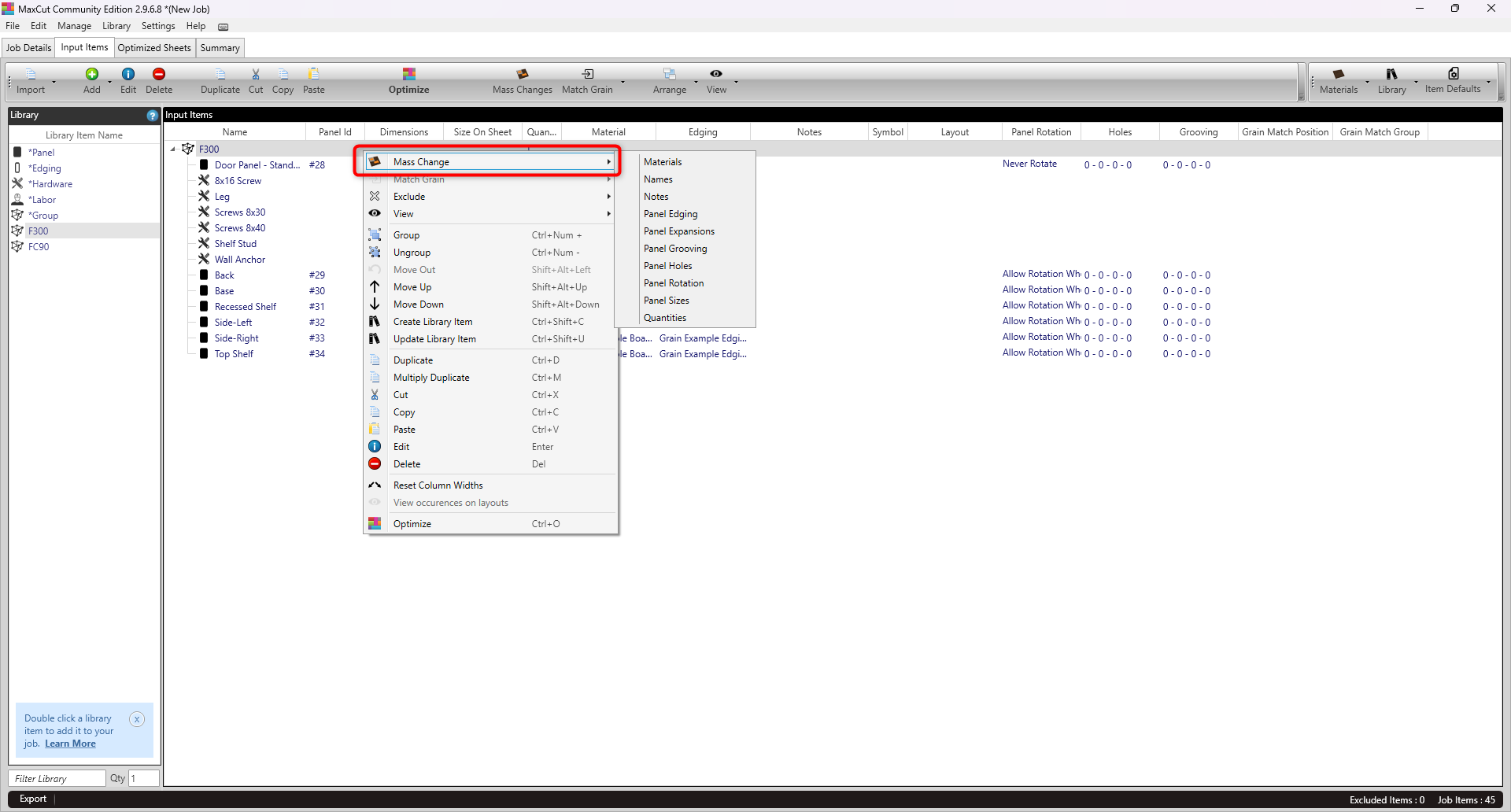
Or right-click your selection, choose Mass Changes, and pick what you want to change from the drop-down.
At the bottom left of the change window, choose which items to include:
Selected: only the items you selected in step 1.
All: every item in the job.
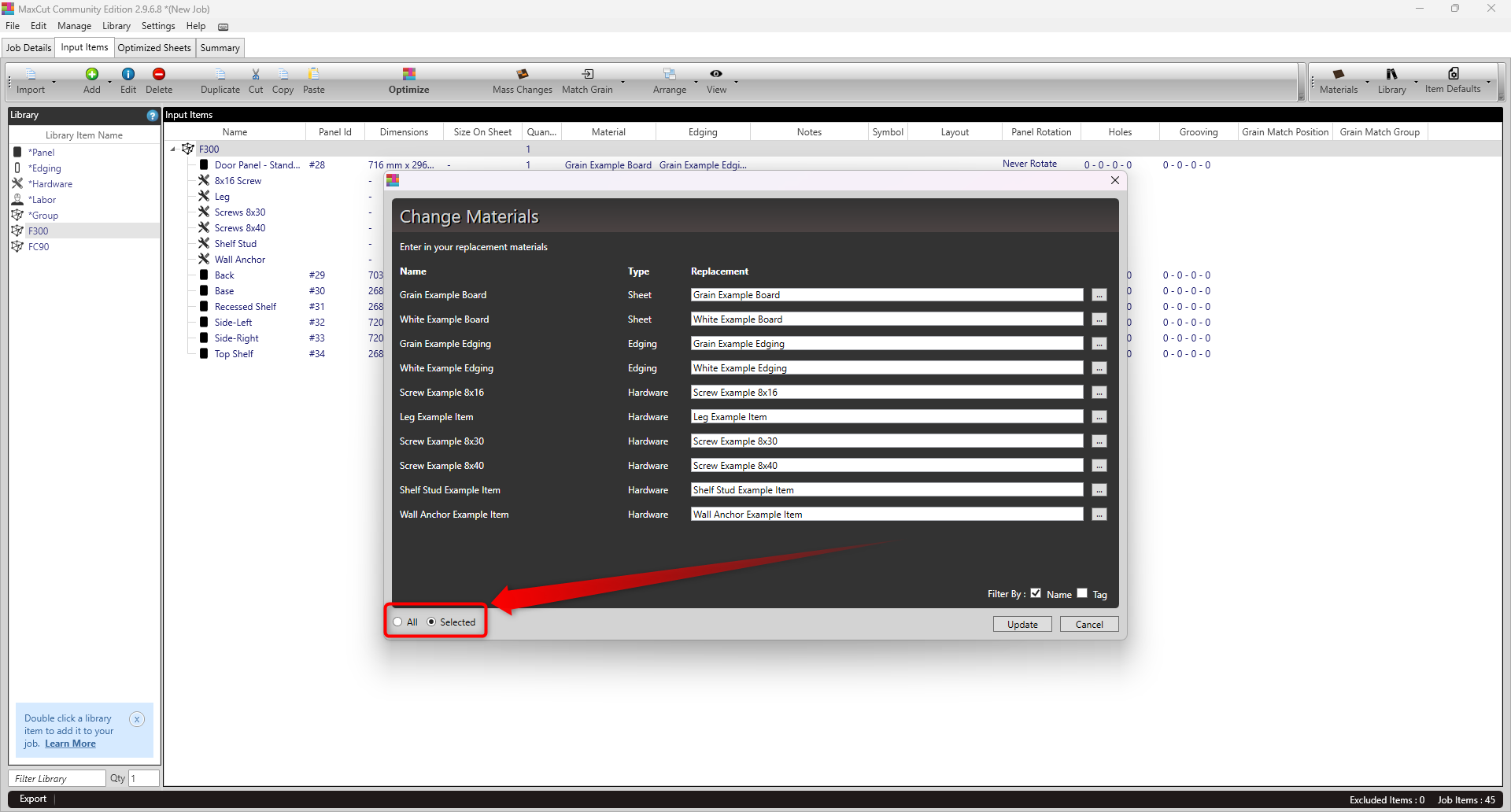
The window lists the current values for those items, for example each material and its type (sheet or edging). Use Filter By at the bottom right to choose how items are identified in the list:
Name (default): items are identified by their name.
Tag: items are identified by their tag, if you use tags.
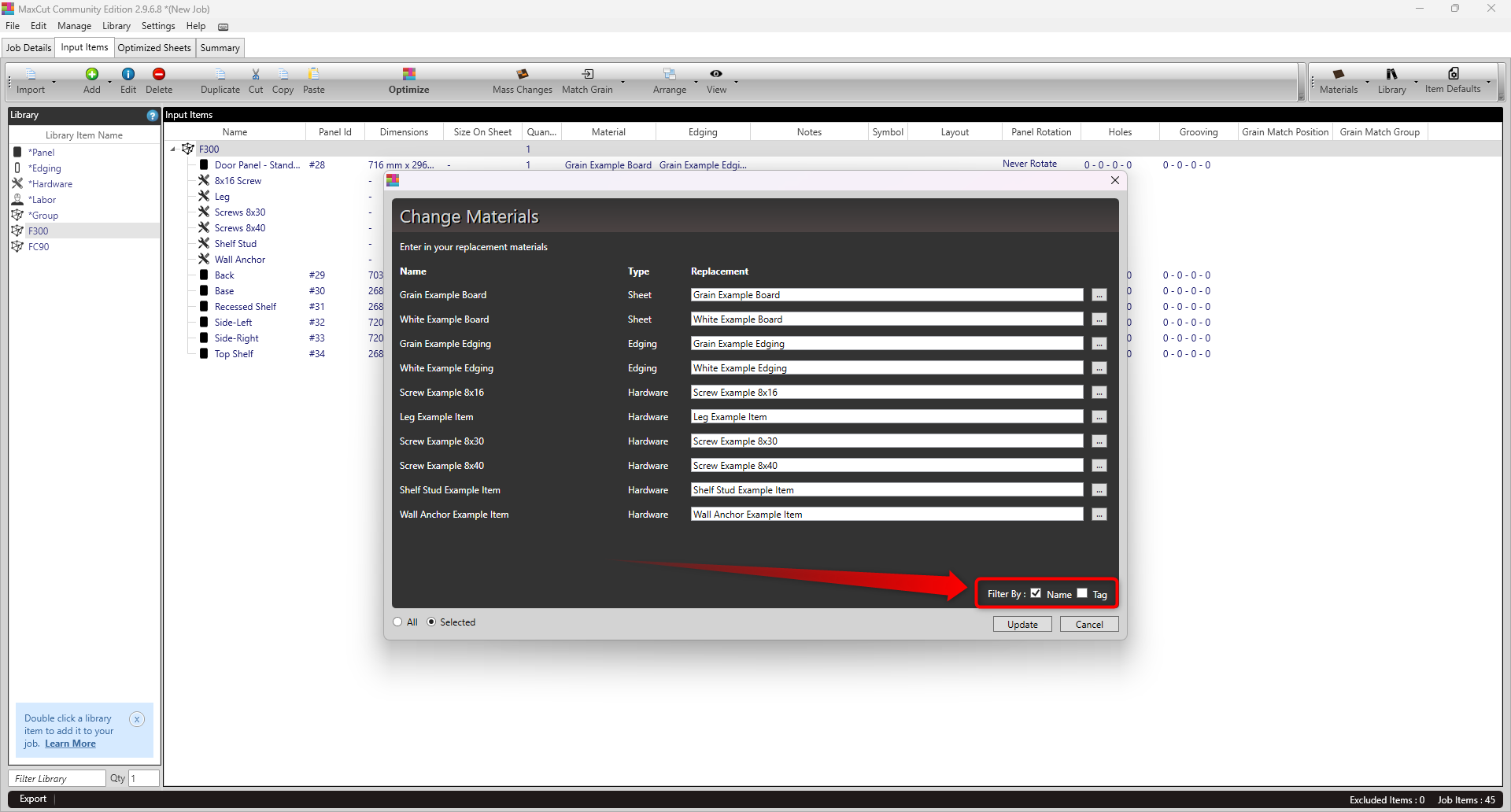
Leave a value as it is if you don’t want it changed.
Click Update to apply the changes.
Tips and Best Practices
Choose your scope first: Use Selected when only part of the job needs changing. This keeps the list short and avoids changing items by mistake.
Use tags for larger jobs: If you tag your items, filtering by Tag makes it easier to see which part of the job you’re changing.
Pair with Multiply Duplicate: Duplicate your items first, then use Mass Changes to adjust the copies in one step.
Check before optimizing: Review the Input Items list after updating to confirm the changes are correct.
Mass Changes saves you from editing parts one at a time. That makes it quicker to adapt a job when a client changes their mind or when you reuse items across projects.