Setting the grain or graphic dimension in MaxCut is easy. You can set it to have a grain for a specific material, or you can set it for a specific input panel.
Setting grain for a specific Material
On the menu go to the following:
Manage > Materials > Sheet
Select the material you want to configure and click "Edit"
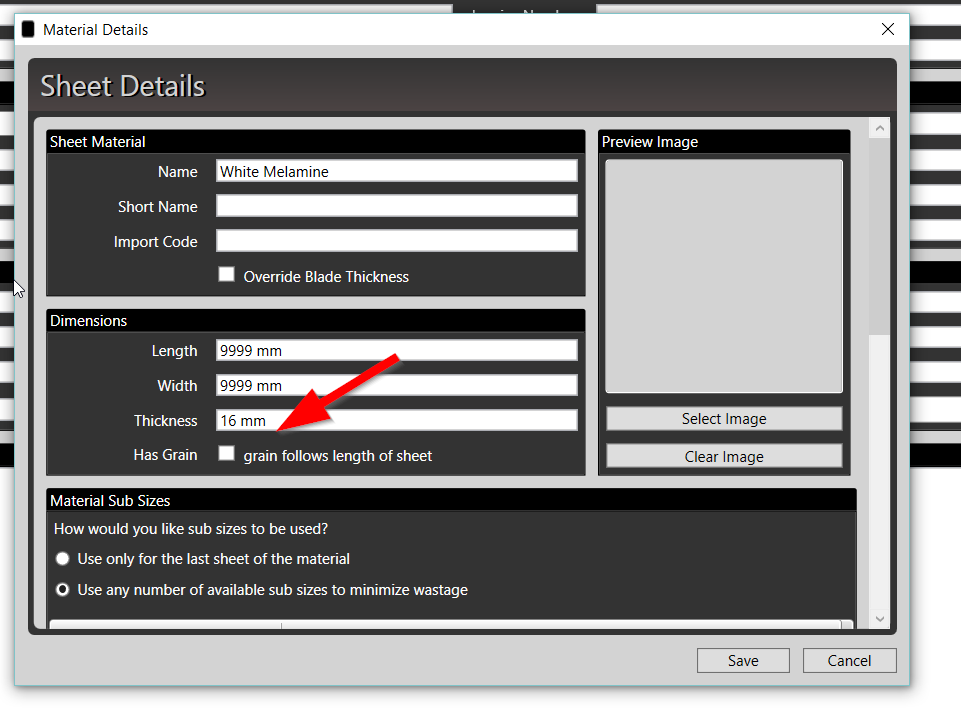
You will see a "Has Grain" - if it is checked, when optimizing, the material will not rotate the input panel.
Important to note that "Grain" always follows the length.
Setting grain for a specific Input Panel
Add or edit a input panel - on the bottom left you will see and "Advanced" button - click it.
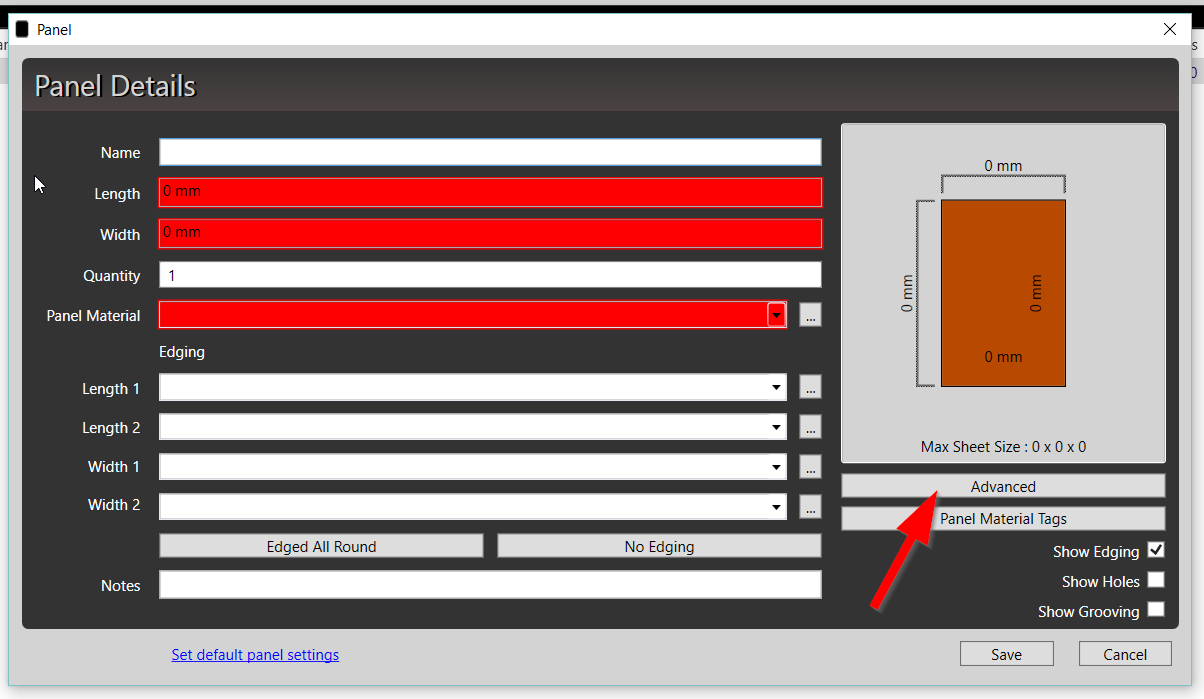
You will then see the advanced settings for that specific input panel.
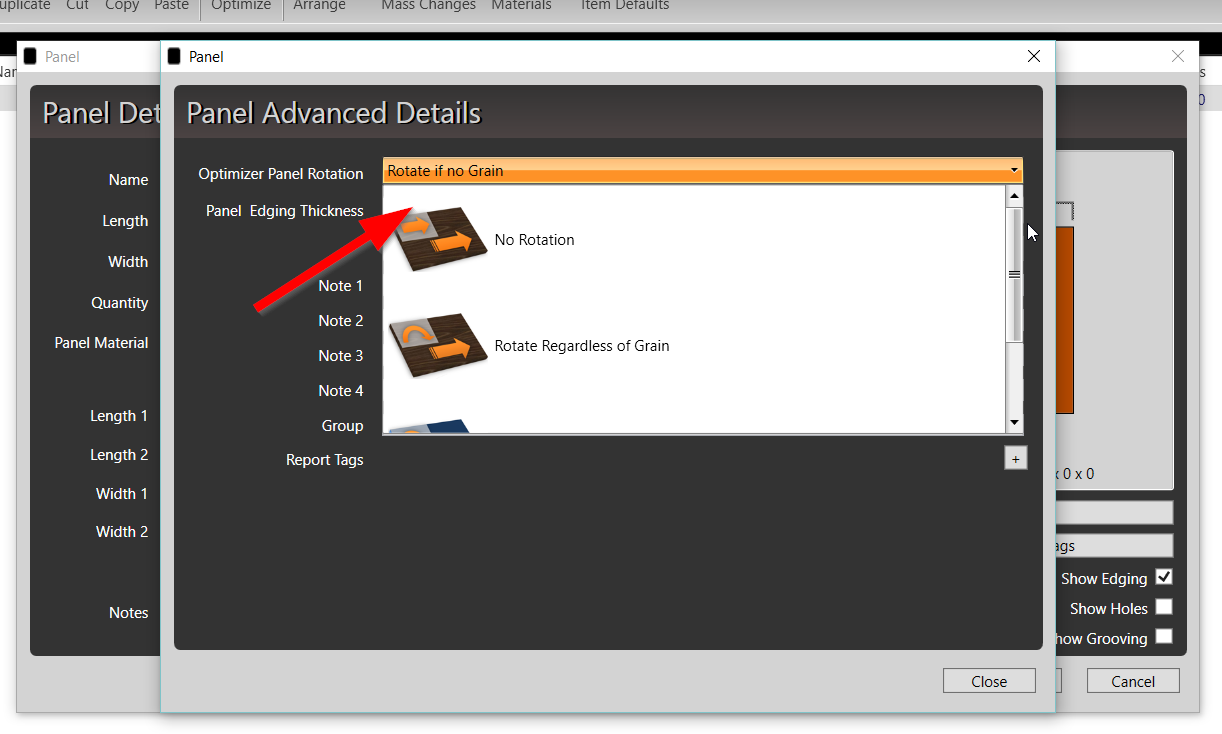
Selecting "No Rotation" is the equivalent to setting a grain for that specific input panel.