

Use grain matching when:
You need multiple panels cut from the same sheet with visually aligned grain.
You want to manually control how panels are grouped and laid out on the board.
You’re working on cabinet doors, drawer fronts, or similar visual assemblies.
1. Select Panels to Match Grain
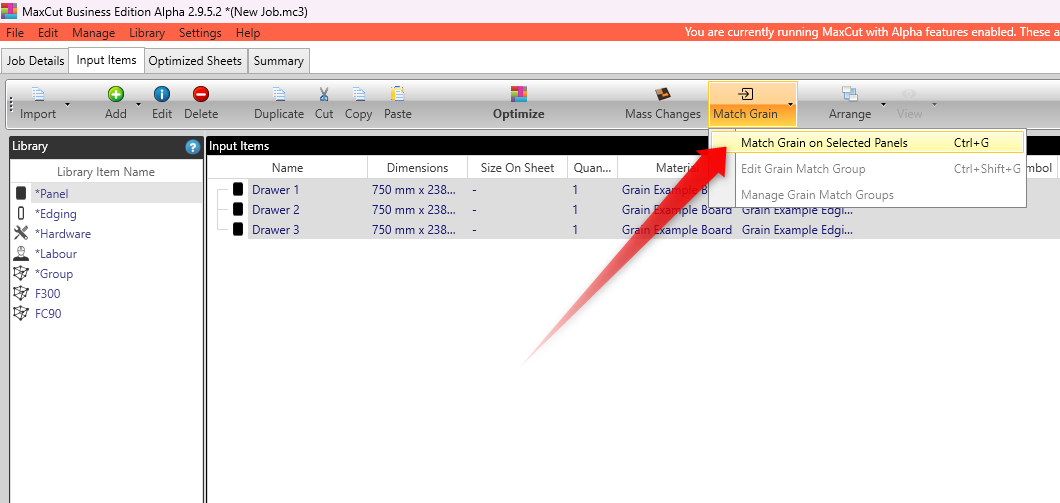
In the Input Items tab, select the panels you want to group together (e.g., all drawer fronts).
Click Match Grain from the toolbar and choose:
Match Grain on Selected Panels or press
Ctrl+G.
2. Use the Grain Match Group Editor (Simple Tab)
👉 Key Features:
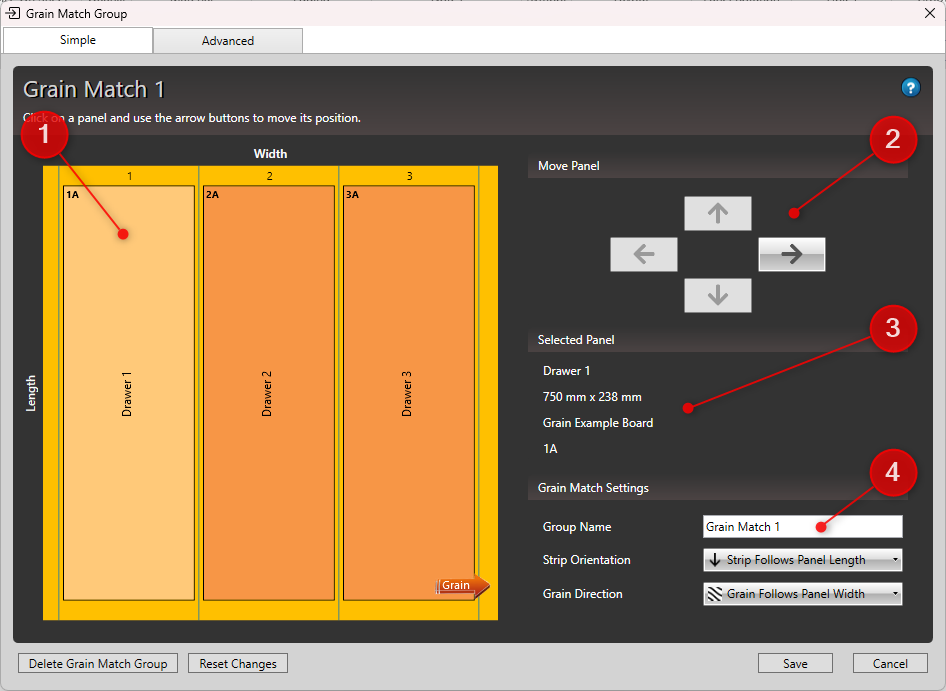
Preview area shows the real-time layout of your grain group, helping you align panels accurately before optimizing.
Move panels using the arrow keys to visually arrange their position within the group.
View selected panel details, including panel name, size, material, and position on the grain match layout.
Rename the group (e.g., “Drawer Stack 1”) in the Group Name field for easy reference.
📏 Match Grain Settings
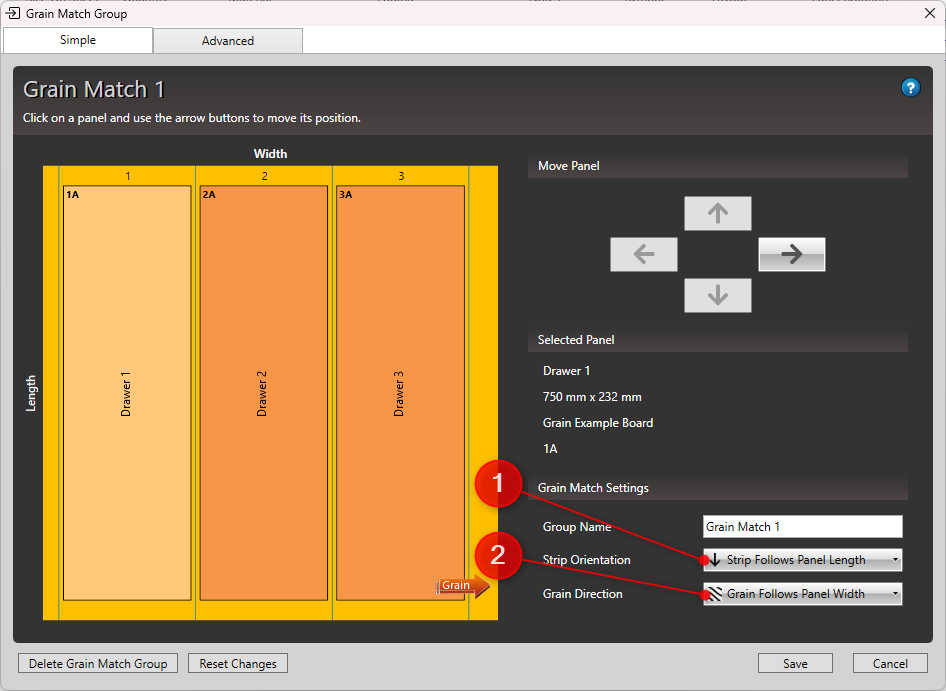
1. Strip Orientation
Defines how panels are laid out in strips within the layout. Each strip is separated by thin blue lines and assigned a number for easy identification.Strip Follows Panel Length: Stacks along the length (vertical) of the panel.
Strip Follows Panel Width: Stacks along the width (horizontal) of the panel.
2. Grain Direction
Controls how grain lines flow:Grain Follows Panel Length
Grain Follows Panel Width
3. Use the Advanced Tab (Optional)
The Advanced tab gives you full control over strip numbers and positions, similar to working in Excel. It includes the same settings and controls as the Simple tab, but offers greater flexibility by allowing you to manually input the exact positions of your panels.
You can manually assign positions like:
1A,2A,3A— where1,2,3= strip numbers andA, B, C= position on that strip.
🔁 You can remove a panel from the group using the red ❌ icon.
This is ideal for power users who want to save time and maintain precise control over their layout.

4. Save and Optimize
Once your grain match layout is ready:
Click Save in the bottom right.
Optimize your job.
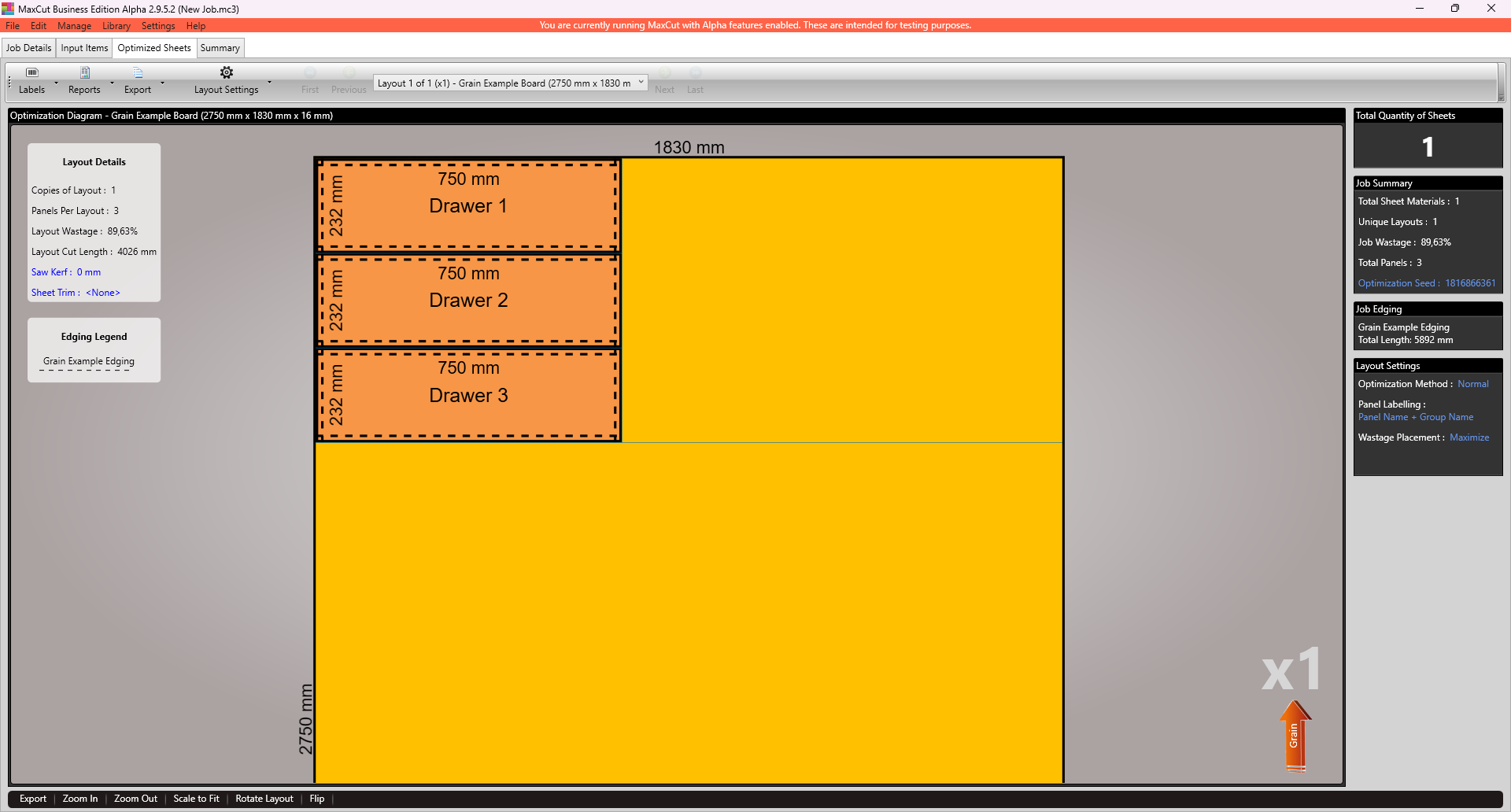
MaxCut will group and place the matched panels in the layout, following the specified grain direction.
You'll now see the panels aligned correctly on the board:
5. Editing a Grain Matched Group Later
To change the group:
Go back to the Input Items tab.
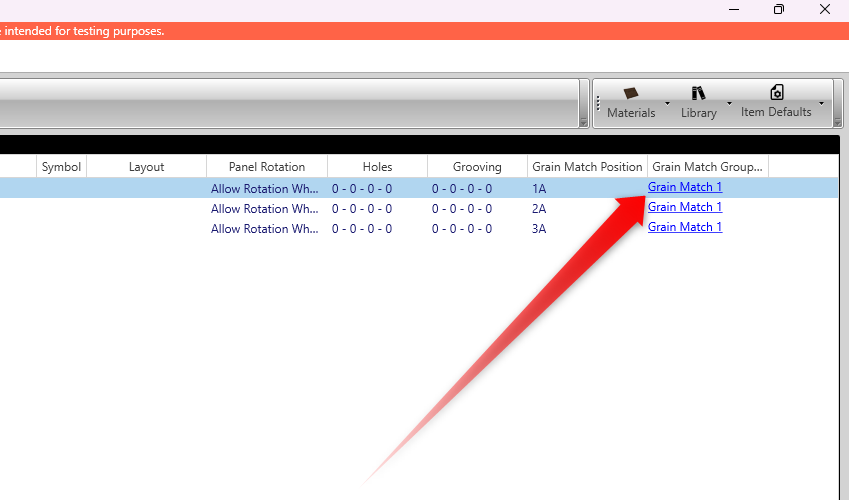
Click the Grain Match Group hyperlink next to any panel in the group.
This reopens the editor, where you can adjust layout, direction, or remove panels.
The Grain Match feature gives you visual control over layout and direction, ensuring a professional finish for projects where wood grain matters.