

To send a MaxCut optimisation layout from MaxCut to your beam saw or CNC use MaxCut's export tool. Most Beam Saws & CNC's have support for DXF files which MaxCut can export to.
Should your machine have a DXF Import option you can send a MaxCut optimisation layout to that machine.
To export an optimisation layout to DXF:
In MaxCut
Optimise the job you would like to export to your machine so you can see your optimisation layout.
Go to File > Export > Optimisation Layouts on the menu bar.
Alternatively, select the Export button at the bottom left corner on the Optimisation Screen.
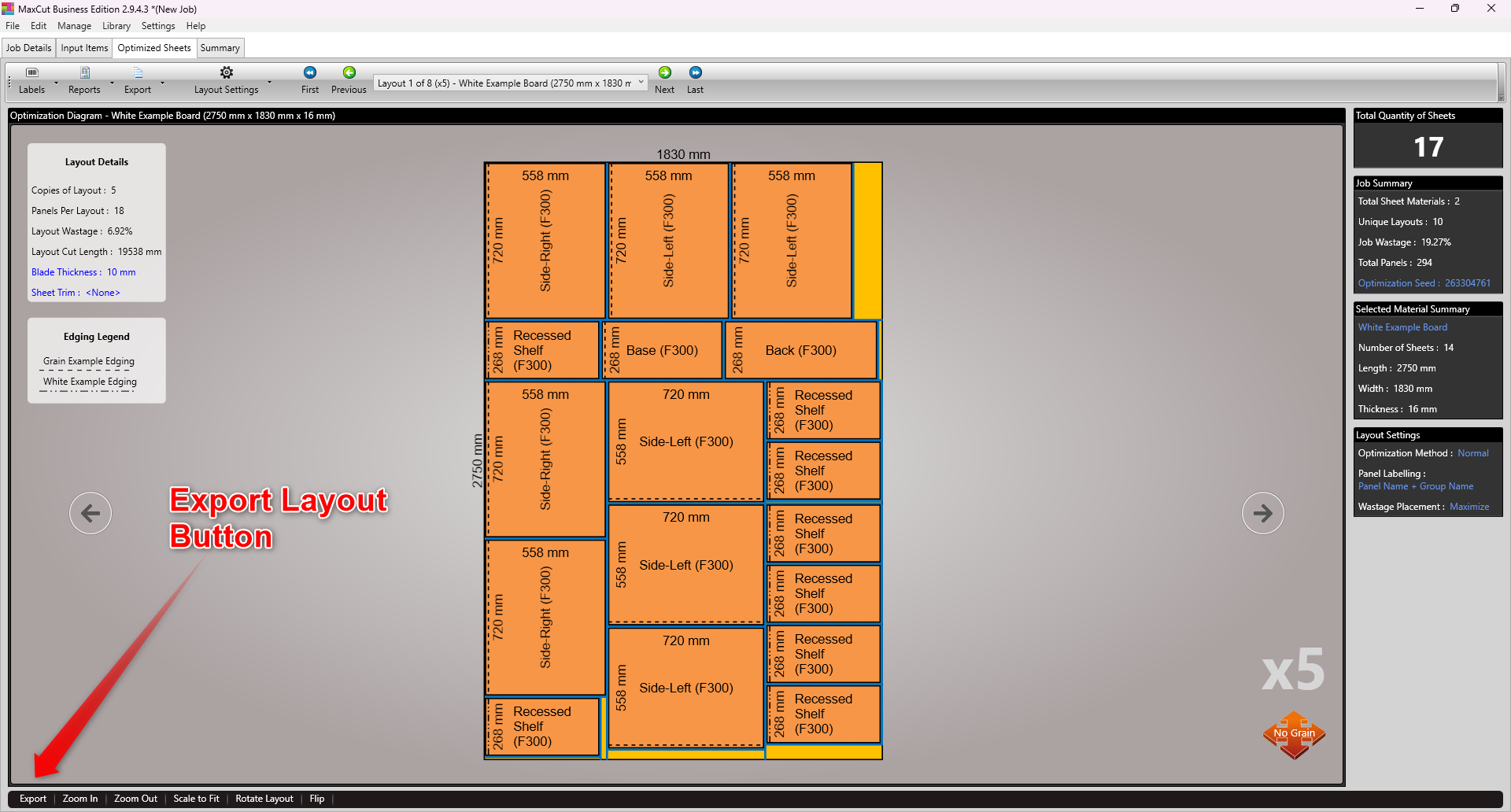
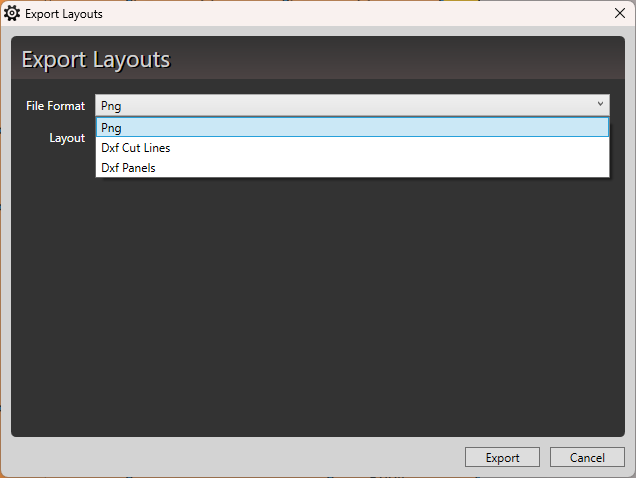
You will now be prompted for the export format you require.
Select either DXF Cut Lines or DXF Panels depending on what is appropriate for your machine.
You can export the current sheet layout or all layouts for the job.
Click "Export".
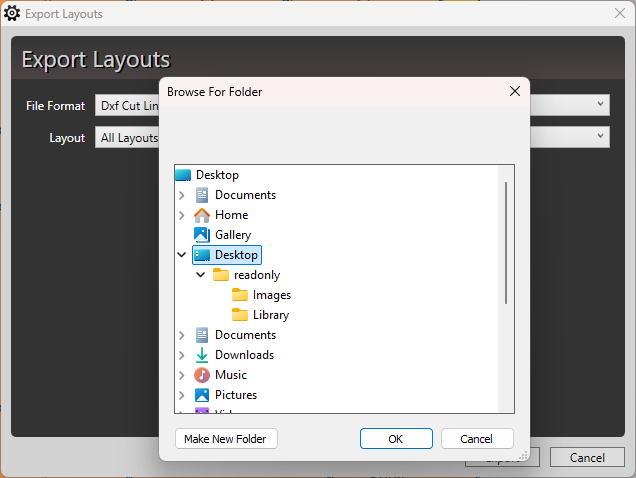
You will be prompted to choose where you want to save the exported file(s).
Select an appropriate folder and click OK.
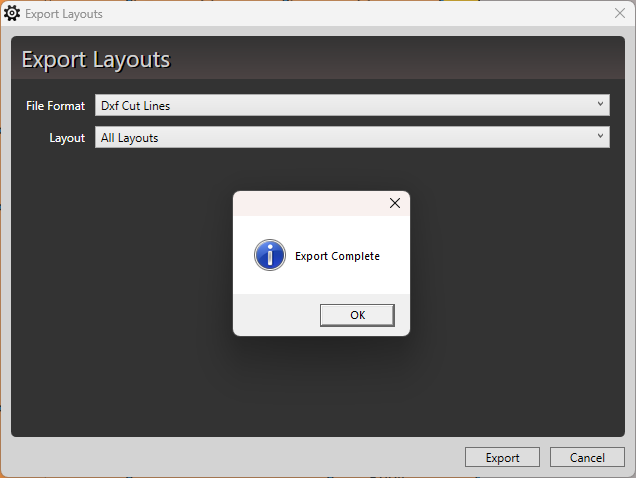
MaxCut will display a dialog with the message "Export Complete".
On your CNC or Beam Saw
On your CNC or Beam Saw in the controller application find the DXF import option. For instance on a Biesse machine you will have BiesseWorks.
Select the DXF file you exported from MaxCut and make the appropriate tool selections for each DXF layer.
If Your Machine Requires Something Different
Every machine and CAM setup is a little different. If your machine requires a specific file format or layer configuration that MaxCut doesn't currently support, we'd love to hear about it.
You can fill out our Send to Machine form at https://maxcutsoftware.com/send-to-machine/ to share details about your machine and integration needs, or reach out to us directly at support@maxcutsoftware.com.
This helps us understand how you are using MaxCut and guides future CNC integration development.