

MaxCut Support Page

Learn how to get the most out of MaxCut with our comprehensive support articles. Find answers to common questions, step-by-step setup guides, and troubleshooting tips.

Identifying the machine a license is activated on

Subscriptions & Licensing

Identifying the machine a license is activated on

This article explains how to find the machine code shown in MaxCut’s License Information screen. Support may request this code to identify which computer a Business Edition license is activated on.

Last updated on 17 Aug, 2026

If you have MaxCut Business Edition installed on multiple machines, sometimes our support agents will need to identify which machine you are referring to for a license query. From MaxCut 2.8.1.63 onward we show a machine code on the license information page.

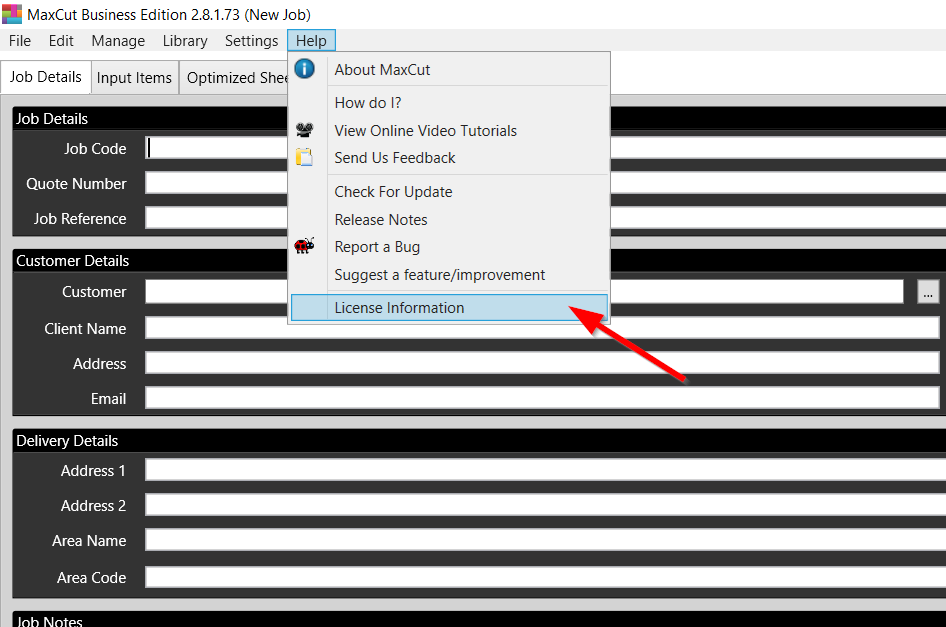
To view the machine code, go to Help > License Information.
 

Image


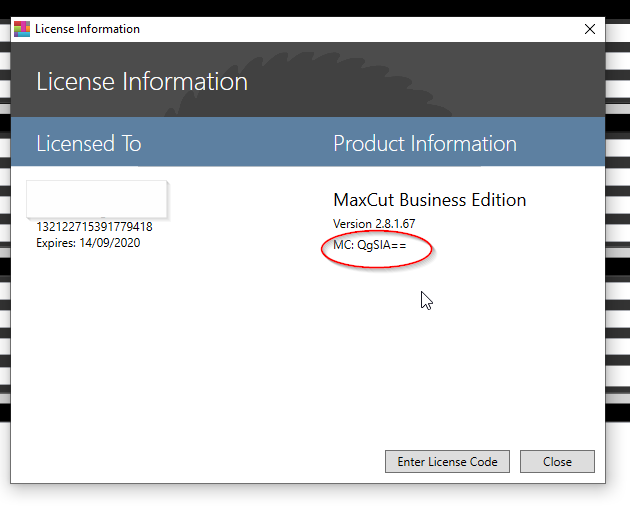
This will open up the license information screen.

The number circled in red is the first few digits of your computers machine code which helps us identify which computer the license is running on.
Image

Was this page helpful?
Previous

What is the difference between Community Edition and Business Edition?

Next