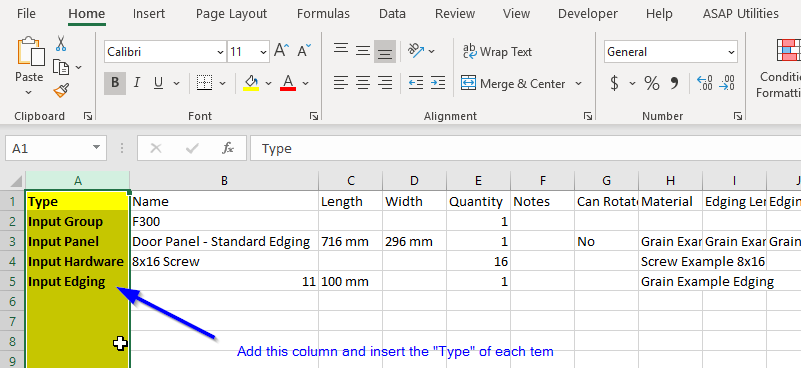

When importing a CSV file, you may be getting an "Unrecognized Item" error. The reason for this is that your file is not telling MaxCut what type of item you are trying to import (either Input Panel, Input Hardware, Input Edging, or Input Group). There are 2 methods by which you can fix this error:
METHOD 1:
If you are only going to be importing panels by CSV, you can do the following:
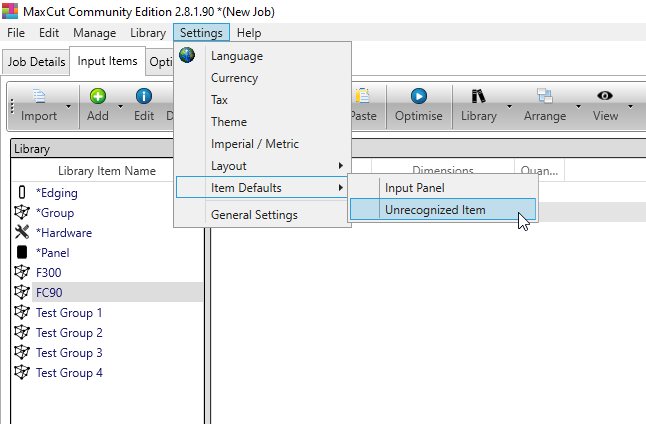
1. Open MaxCut and go to Settings > Item Defaults > Unrecognized Item
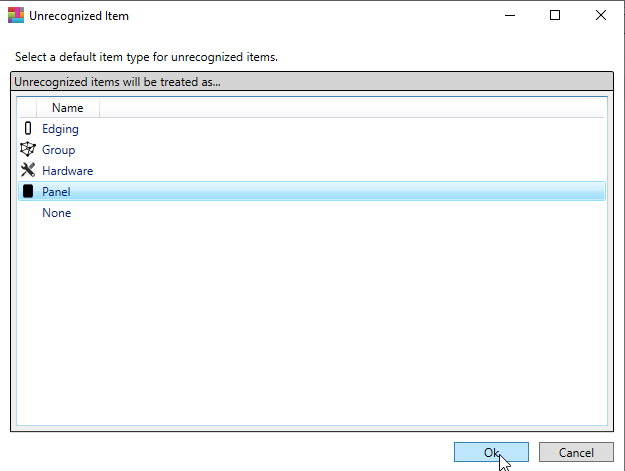
2. Then, select Panel and then Ok. Now, when you import a CSV, the items in your file will automatically be recognized as Input Panels.
METHOD 2:
If you are going to be importing panels as well as other types of items, you will need to add an additional column to your input file.
1. Open your CSV file in Excel. Add an additional column to the data. This will be your "Type" column.
2. In this column, for each line item, insert the "Type" of each item. They should be either "Input Panel", "Input Hardware", "Input Edging", or "Input Group".
3. Save the file. Now, when you import the file, the items should be recognized.