The Layout Font Settings in MaxCut control the size of text shown on your optimisation layouts. If the panel dimensions or labels on your layouts are hard to read, you can increase the font size here. Font sizes can be set separately for the on-screen layout and the printed layout. You can find this setting in Settings > Layout > Font Settings.
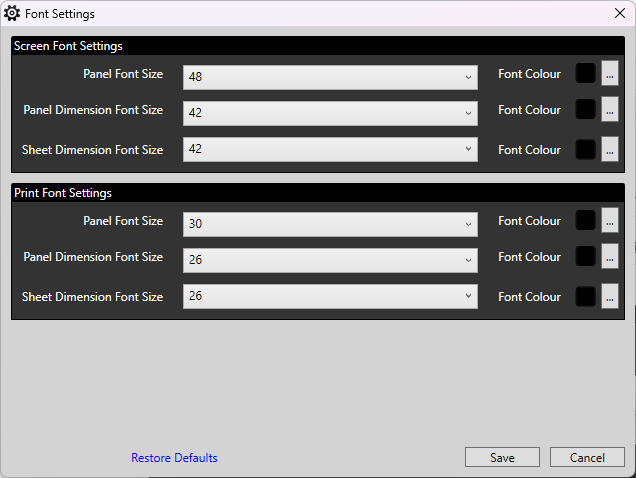
How to change the font size:
Go to Settings > Layout > Font Settings.
Adjust the font sizes for the on-screen layout, the printed layout, or both.
Click Save.
Re-optimise your job.
Note: Font changes are not applied to a layout that has already been optimised. Re-optimise your job after saving to see the new font sizes.
Tip: If text still doesn’t fit on smaller panels after increasing the font size, check the “Hide panel dimensions that do not fit” option in Layout Text Settings.